
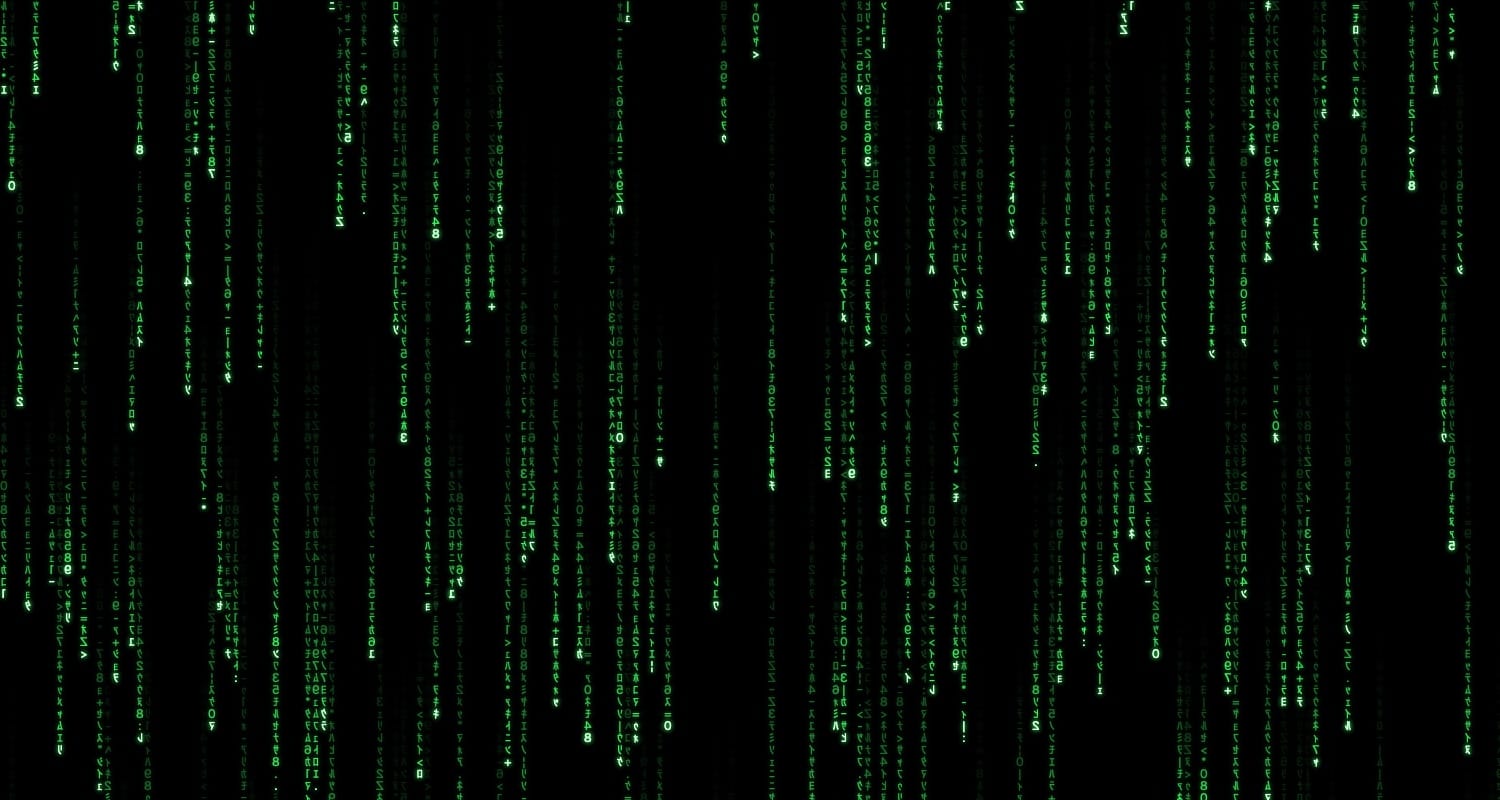
Matrix is a native macOS screensaver that fills your display with the falling green code from the film, and it does it properly. Rather than wrapping a web page or a video loop, it is written in Swift against Apple's own ScreenSaver framework, so it runs as a genuine .saver bundle that sits in System Settings beside the built-in options. The result is mirrored katakana, glowing white leading characters and trails that fade into black, with a small Options panel that lets you change colour, speed, density and font size. It started as a single question, whether a Matrix screensaver could be built from scratch in an afternoon, and ended up teaching me more about how macOS hosts screensavers than I ever expected to know.
The Rain
The screen is divided into a grid of narrow columns, and streams of characters fall down them at different speeds. Each stream is led by a bright, near-white character with a soft glow, and everything it passes over lights up in green before slowly fading out. Because every column fades at its own rate, some trails are short and urgent while others hang in the air for several seconds. Characters inside a trail also flicker and change at random, which is what stops the effect from looking like a simple scrolling pattern.
The character set is the detail that makes it feel right. It uses half-width Japanese katakana mixed with digits and a handful of symbols, and every glyph is drawn mirrored, just as it is in the film. The text size scales with your display rather than being fixed, so the rain looks the same density on a laptop as it does on a 3440-pixel ultrawide.
The Build
Under the hood, Matrix is a single Swift file and a short build script, with no Xcode project at all. The script compiles the code with the Swift compiler from Apple's Command Line Tools, wraps it in a .saver bundle, signs it for your Mac and, if you ask it to, installs it straight into your Screen Savers folder. The current build targets Apple silicon only, which keeps the bundle small and the build quick.
Performance was the main design concern. Drawing thousands of individual text characters 30 times a second is surprisingly expensive, so the screensaver renders every glyph once, as a small image complete with its glow and mirroring, the moment it starts. After that, each frame is simply a matter of stamping those pre-made images onto the screen at the right brightness. The result runs smoothly at full resolution without making your fans work for it.
Customisation
Clicking Options in System Settings opens a compact panel with four controls. Colour offers seven presets, from Classic Green through Cyan, Blue, Purple, Red and Amber to White, each shown with a small swatch in the menu. Whatever colour you pick, the leading character of each stream stays a near-white version of it, so the glowing heads never lose their punch. Speed runs from a lazy 0.25× to a frantic 3×, and the trails are tuned to stay the same length at any speed, so a faster rain never looks thinner.
Density controls how many streams are falling at once, and Font size sets how large the characters are. Both started life with a 1.00× setting that was simply my first guess. After living with it for a while, I re-tuned them so that 1.00× now gives a denser rain with smaller characters, which looks noticeably closer to the film. A Defaults button puts everything back in one click, and your choices are saved separately from the screensaver itself, so they survive an update.
Glitches in the Matrix
Getting the rain to look right was the easy part; getting macOS to host it reliably was not. On current versions of macOS, third-party screensavers run inside a system process called legacyScreenSaver, and the Options panel is drawn there too, then shown inside System Settings. The first sign of trouble was an Options panel that often ignored every click. The system log revealed the cause: the panel's automatic layout rules contradicted each other slightly, which a normal app shrugs off but legacyScreenSaver treats as an uncaught exception. Placing each control at a fixed position, with no automatic layout at all, fixed it for good.
The second glitch was subtler. Recent versions of macOS are known for leaving old copies of a screensaver running after you dismiss it, so the common advice is for the screensaver to quit its own process when it stops. Doing that turned out to cut System Settings off mid-conversation, and the next Options panel would appear but never receive a click. The fix was gentler: when the screensaver is dismissed, it now stops animating and frees its memory, but leaves the process alone.
That change revealed a third issue, where changing your options and then clicking Preview showed the old settings. macOS was reusing a copy of the screensaver created before the change, and that copy had read its settings only once. The screensaver now re-reads your options every time it starts.
The last glitch is purely cosmetic. My development Mac shows a generic vortex image as the screensaver's thumbnail, because macOS cached a placeholder when the very first build, which had no thumbnail, was installed. The same file copied to a second Mac shows the correct green artwork straight away, so if you install it fresh you should never see the vortex at all.
Getting Started with Matrix
To install Matrix, copy the Matrix.saver bundle into the Screen Savers folder inside your user Library, then quit and reopen System Settings. You will find it under Screen Saver, in the Other section at the bottom of the list. Select it, click Options to choose your colour, speed, density and font size, and click Preview to see the result full screen.
Because the bundle is signed only for the Mac it was built on, rather than by a registered Apple developer, another Mac may refuse to open it at first. If that happens, you can allow it from Privacy & Security in System Settings. If you are building it yourself, a single build command compiles, signs and installs it, and a second option regenerates the thumbnail from the screensaver itself.
The Screensaver
Conclusion
In this article, we walked through the digital rain itself, how it is built and drawn efficiently, the options you can change, and the glitches that macOS threw up along the way. The rain was the quick part, and most of the work went into making a screensaver behave well inside the way modern macOS hosts them. What came out the other side is a small, native screensaver that looks the part on any display and stays out of your way. If you have ever wanted the opening of The Matrix playing on your desk whenever you step away, this is about as close as it gets.